Seeing an old photo, missing a recent update, or looking at a page that seems a little mixed up? Your browser may be showing a saved copy. This guide will help you give it a fresh start.
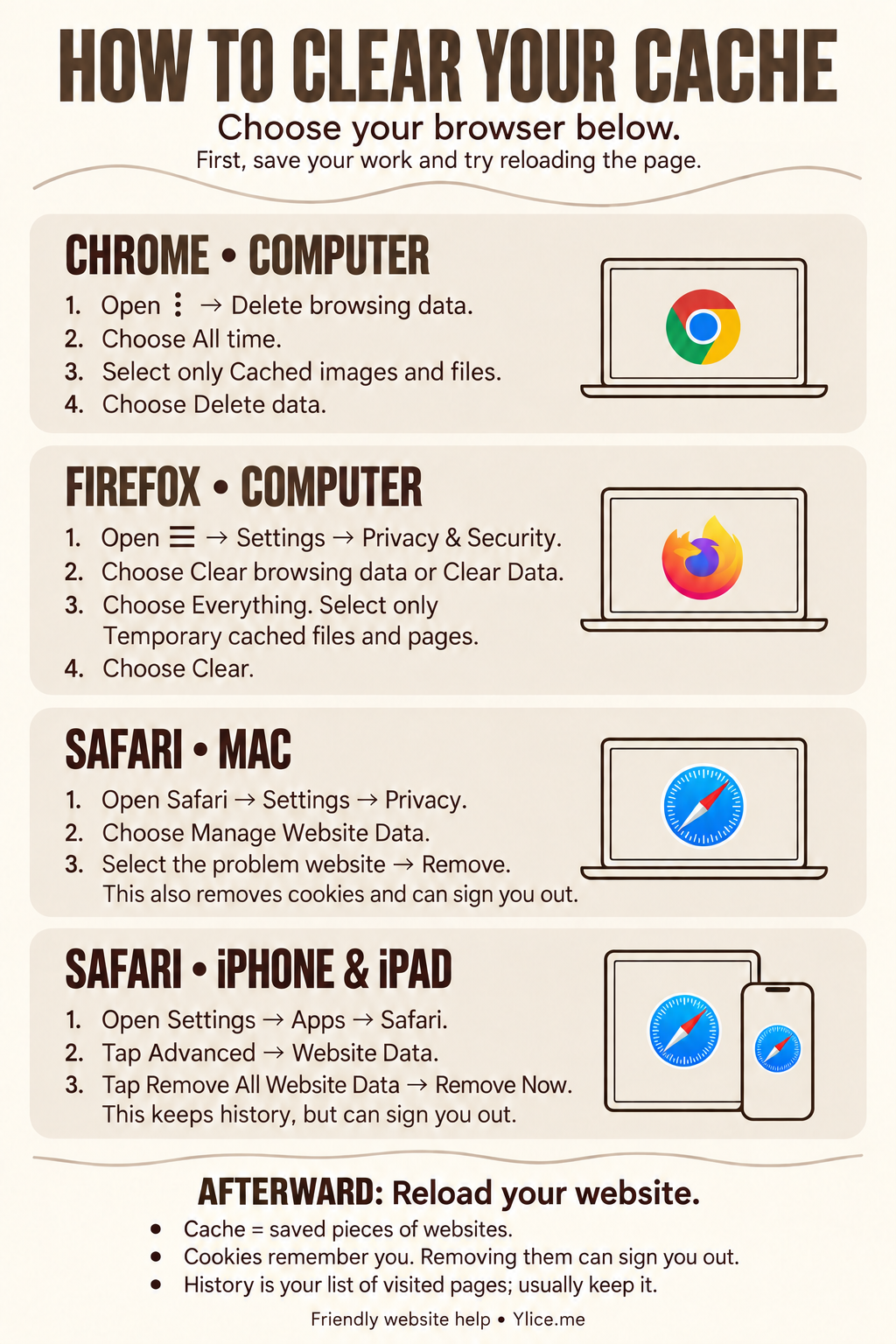
Detailed instructions
Before you begin
Your browser is the app you use to visit websites, such as Chrome, Firefox or Safari. Its cache (say “cash”) holds little pieces of websites so they can open faster next time. Sometimes those saved pieces are out of date.
- Save anything you are working on, including a WordPress draft or an unfinished form.
- Return to the problem page and choose the reload button — the small circular arrow near the website address. On a phone, you may need to tap the address bar to see it.
- If the page still looks wrong, follow the steps below for the browser and device you are using.
You only need the section that matches your device. Clearing Chrome’s cache does not clear Safari’s cache.
Cache, cookies and history — what is the difference?
- Cache: saved pieces of pages, such as pictures. Clear this first when a website looks outdated or does not display properly. It does not delete the photos or pages on your actual website.
- Cookies and website data: information that helps a website remember you, your preferences or your shopping cart. Removing it can help with a stubborn sign-in problem, but it can sign you out and reset site preferences.
- History: the list of pages you have visited. You usually do not need to erase this to see a website update.
Before you choose Delete or Clear: check which items are selected. Keep cookies, history, saved passwords and autofill information unless you intend to remove them. If you will remove cookies, make sure you know how to sign back in.
Choose your browser: Chrome · Firefox · Safari. You only need to follow the steps for the app you use.
Chrome
On a computer — Mac, Windows or Chromebook
- Open Chrome and click the three dots (⋮) at the top right.
- Choose Delete browsing data. Older versions may say Clear browsing data.
- Set the time range to All time.
- Select only Cached images and files. Remove the check marks beside cookies, history and anything else you want to keep.
- Choose Delete data (or Clear data), then reload your website.
See Google’s Chrome computer instructions.
On an iPhone or iPad
- Open Chrome, tap the three dots (•••), then Delete Browsing Data.
- Set Time Range to All Time.
- Tap Browsing Data and leave only Cached Images and Files selected.
- Tap Confirm, then Delete Browsing Data. Return to your website and reload it.
See Google’s Chrome iPhone and iPad instructions.
On an Android phone or tablet
- Open Chrome, tap the three dots (⋮), then Delete browsing data.
- Tap More options to review what will be removed. Choose All time and select only Cached images and files.
- Leave history, tabs, cookies and other items unselected. Tap Delete data, then reload your website.
See Google’s Chrome Android instructions.
Firefox
On a Mac or Windows computer
- Open Firefox, click the three-line menu (☰), then choose Settings.
- Choose Privacy & Security (sometimes called Privacy and security).
- Find Cookies and Site Data or Browsing data, then choose Clear Data… or Clear browsing data.
- If you see a When menu, choose Everything. Select only Temporary cached files and pages. Older versions may call this Cached Web Content or Cache.
- Keep cookies, history and other items unselected. Choose Clear, then reload your website.
See Mozilla’s Firefox cache instructions.
Safari
On a Mac
This method removes cookies as well as cached data for the website you select. You may need to sign in to that website again. Start with just the website that is giving you trouble.
- Open Safari.
- In the menu at the very top of your screen, choose Safari → Settings (or Preferences on an older Mac).
- Choose Privacy → Manage Website Data.
- Find and select the problem website, then choose Remove. Confirm if asked.
- Close the settings window and open the website again.
You do not need to choose Remove All for a problem affecting one website. See Apple’s Safari Mac instructions.
On an iPhone or iPad
This keeps your browsing history, but removes cookies and other website data. It can sign you out of websites. Safari’s usual website-data controls do not offer the same cache-only checkbox as Chrome or Firefox.
- Open the Settings app on your device.
- Tap Apps → Safari. On an older device, look for Safari directly in Settings.
- Scroll down and tap Advanced → Website Data.
- Tap Remove All Website Data, then Remove Now to confirm.
- Return to Safari, open your website and reload the page.
Want to remove history too? The separate Settings → Apps → Safari → Clear History and Website Data option removes history as well as cache and cookies. Only use it if that is what you want. If Safari history syncs through iCloud, clearing history can affect your other Apple devices too.
See Apple’s iPhone instructions and Apple’s iPad instructions.
Afterward, check your website again
The first visit may take a little longer while your browser saves fresh copies. That is normal. You do not need to clear your cache every day.
If the update still does not appear, try viewing the website in another browser. The website itself may also be holding an older copy, or the change may not be published yet.